
Icon Changer
Any StudioPersonalization
4.4889.00 Reviews
- Version
- 1.8.8
- Installs
- 10.00M
- Age Rating
- Everyone
Screenshots
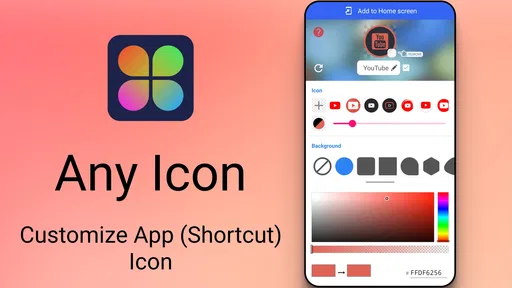
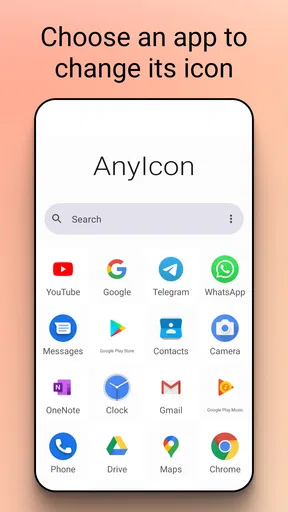
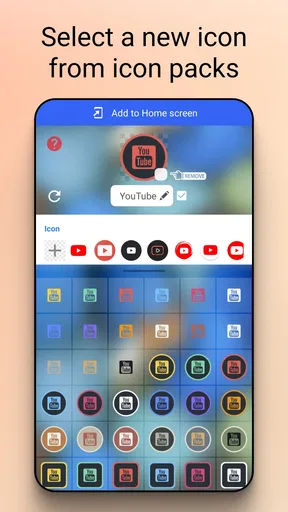
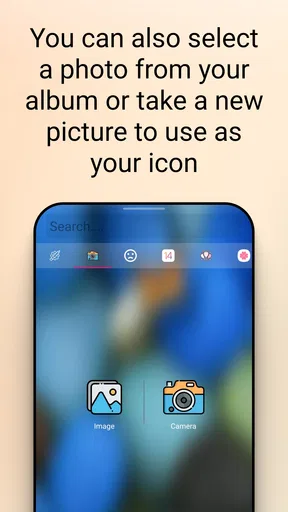
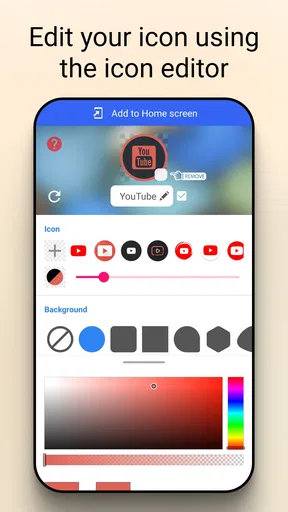
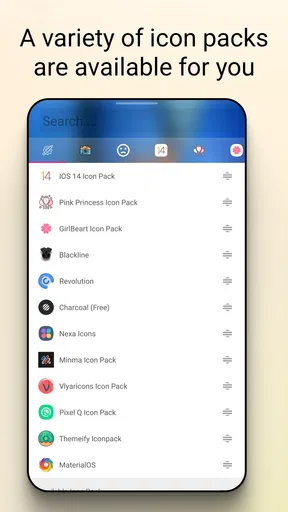
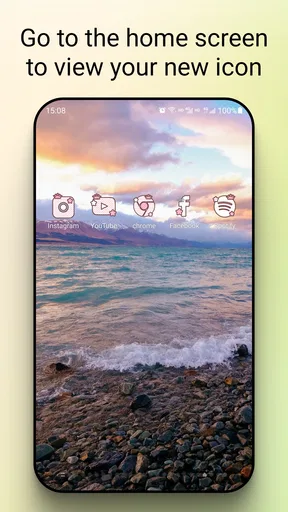
Our Review of Icon Changer
 Analysis by Appyee
I enjoy personalization apps most when they solve a small annoyance without turning the phone into a project. Icon Changer, developed by Any Studio, takes that approach: it focuses on changing the appearance of an app icon rather than trying to redesign the entire launcher experience. I reviewed it as a free Android personalization app, and my overall impression is that it is useful for people who want a more individual home screen but need to approach the setup with realistic expectations.
The appeal is easy to understand. A familiar app can look completely different when its icon matches a color scheme, a seasonal theme, a minimalist layout, or a carefully arranged collection of shortcuts. That can make a phone feel more personal, especially when the default icons are visually inconsistent. The important point is that this is an icon-customization tool, not a full replacement for Android’s launcher. That distinction explains both its usefulness and some of the friction new users may encounter.
Getting past the first setup hurdles
My first recommendation is to begin with one non-essential app instead of changing the entire home screen at once. This gives you a chance to understand how Icon Changer behaves on your particular phone, where the new icon appears, and whether the result fits your launcher’s layout. It is a small test, but it prevents a common frustration: creating several customized icons and then discovering that the arrangement needs to be rebuilt.
The app’s store summary is simply about customizing an app icon, while its short description calls it “Icon Changer.” In practice, that narrow purpose is helpful. I would not open it expecting tools for widgets, wallpapers, icon packs, or a complete theme system. If your goal is to replace every visual element on the home screen in one coordinated operation, a launcher or dedicated theme system may be a better match.
Before starting, decide which image you want to use and where it is stored. A clear, square image usually makes a more convincing icon than a wide photograph with important details near the edges. A simple symbol also tends to remain recognizable at small size. This is one of the less obvious trade-offs: an image that looks attractive in the gallery may become too busy once reduced to the dimensions of a home-screen icon.
It also helps to leave the original app icon in place until the replacement works. I prefer to create one new shortcut, test it, and only then decide whether the old icon should be moved or removed from the visible home screen. That approach protects access to the app if the customized shortcut is misplaced, renamed, or not displayed as expected.
What the phone’s launcher changes
Many setup problems that appear to come from an icon tool are actually caused by the launcher. Android phones do not all organize shortcuts in exactly the same way. A manufacturer’s home-screen software may place a new shortcut on a different page, keep the original icon in the app drawer, or handle long-press actions differently from another device.
For that reason, I would check the home screen immediately after creating an icon rather than assuming the result failed. Look across the other pages, check the app drawer, and search for the application by name. If the original and customized versions both appear, that does not automatically mean the app duplicated your installation. It may simply mean that the new visual entry is a shortcut while the original remains available elsewhere.
This distinction matters in everyday use. Imagine customizing the icon for a messaging app before work because you want a calmer, monochrome home screen. If you remove the original too quickly and cannot find the new shortcut, you may waste time trying to recreate it. Keeping the original accessible until the test is complete makes the process much less stressful.
Small preparation choices that improve the result
I found that consistency matters more than having a large collection of images. Choosing five or six icons with similar backgrounds, line thickness, and visual weight can make a home screen look intentional. Mixing a detailed photograph with a flat symbol and a very pale illustration often produces a less polished result, even when each individual image looks good.
For a practical workflow, I would first group the apps that matter most: communication, travel, finance, work, or entertainment. Customize only the entries you use frequently. This avoids a hidden cost of personalization: maintenance. If every icon is individually changed, reorganizing the home screen later can take more effort than expected because you are managing a visual system rather than simply moving standard icons.
Another useful habit is to keep the original app name recognizable. A creative picture can be attractive but ambiguous, and a home screen should still be quick to navigate. If you use a custom image for an app that you open under pressure, such as maps or a payment service, recognition should come before decoration. I would reserve the most experimental designs for less urgent apps.
Recovering when the workflow goes wrong
If an icon does not appear where expected, I would retrace the process instead of repeatedly tapping the creation option. First, return to the home screen and look for a newly added shortcut. Then check another page or the app drawer. If the original app still opens normally, the installation itself is probably fine; the issue is more likely the location or presentation of the shortcut.
If the image looks cropped, choose a different source image with more space around the subject. Cropping is often a property of fitting an image into a small icon shape, not evidence that the app has damaged the original file. A centered symbol on a plain background is a safer starting point than a landscape photo or a portrait with details at the borders.
When a customized entry seems to open the wrong place, compare it with the original icon. Test the original first, then test the new one. This simple comparison separates an icon-display problem from an application problem. It also gives you a safe fallback while you adjust the home screen.
I would avoid making several changes while diagnosing one problem. Create one icon, test it, and only then continue. Changing the image, moving the shortcut, deleting the original, and restarting the phone all at once makes it difficult to know which action helped. A slower sequence is usually faster overall.
When restarting or checking Android helps
A basic restart can help when the home screen has not refreshed correctly, particularly after moving several shortcuts. I would also check whether the phone is running an older Android interface with unusual home-screen behavior. Icon Changer supports Android versions beginning with 5.0, but support for an operating-system version does not mean every manufacturer’s launcher will present shortcuts in exactly the same way.
If the app itself opens but the home screen remains unchanged, close and reopen the launcher or restart the device before assuming the customization failed. If only one particular app behaves strangely while other customized entries work, that points more toward the launcher or that app’s shortcut handling than toward the general icon-selection process.
It is also worth checking whether the home screen is locked against changes. Some devices offer a setting that prevents moving or adding icons. In that situation, Icon Changer may be working normally while Android blocks the final placement. Unlocking home-screen editing temporarily is a sensible check, then you can enable the lock again after finishing.
Recognizing problems that are not caused by Icon Changer
Personalization can expose weaknesses in a home-screen arrangement that were already there. A crowded layout, aggressive battery management, or a launcher that refreshes itself may make shortcuts appear inconsistent. If a customized icon disappears after a restart but the original application remains installed, I would investigate the launcher’s shortcut behavior before blaming the image tool.
The same applies to notifications. Changing an icon does not necessarily change how an app displays notification badges, labels, or alerts. Those elements are controlled by Android and the launcher, and they may continue to use the original application identity. Anyone expecting a fully transformed notification experience should lower those expectations or look for a broader launcher solution.
Search is another useful test. If the app can be found through Android’s app search but not through the customized picture, the application is still present and the issue is visual organization. If the original app cannot be opened either, the problem is no longer limited to icon customization and should be handled as a normal app or device troubleshooting issue.
Who will get the most from it
I think Icon Changer is best for people who want selective personalization. You may be decorating a new phone, matching icons to a wallpaper, creating a low-distraction layout, or giving a child-friendly device clearer visual cues. It also suits users who enjoy changing the home screen for holidays or personal projects but do not want to replace their familiar launcher.
It is less suitable for someone who wants automatic, system-wide consistency. If you expect one tap to recolor every installed app, apply matching widgets, redesign folders, and keep everything synchronized, this focused tool will feel limited. A complete launcher or theme package is more appropriate for that kind of transformation, even if it introduces its own learning curve.
Privacy-conscious users may also appreciate the narrow scope, but I would still judge the experience by the permissions and Android prompts shown on the device rather than assuming that every personalization app works the same way. The sensible approach is to read each prompt, grant only what is needed for the action you are taking, and stop if a request does not make sense for changing an icon.
How it compares with the usual alternatives
The most direct alternative is Android’s standard launcher. It is quicker and more predictable for ordinary shortcuts, but it generally offers less freedom over individual icon artwork. Icon Changer sits between that default experience and a full launcher replacement: it lets you personalize selected entries while allowing you to keep the rest of your normal home-screen habits.
Icon packs are another alternative. They can create a more unified appearance and may be faster when you want many matching icons, but they depend heavily on launcher compatibility and the pack’s own design choices. Icon Changer is more manual, which is a disadvantage for large collections but an advantage when you want to use a particular image that a premade pack does not include.
Manual shortcuts or launcher-specific customization can sometimes provide deeper control, yet they may require more steps and more knowledge of the phone’s interface. I would choose Icon Changer when the priority is a straightforward visual change on a few important apps. I would choose a launcher when the priority is layout control, gestures, folders, widgets, and a consistent system-wide design.
What to expect from the current release
Icon Changer is free and rated for Everyone, which makes it approachable for casual experimentation. It has reached over ten million installs and holds an average rating of 4.4 from around eighty-two thousand ratings, so it is clearly used well beyond a tiny group of enthusiasts. Those figures suggest a proven level of interest, but they should not replace testing it on your own launcher because device behavior still varies.
The app was released on April 9, 2021, and the current version is 1.8.8. It requires Android 5.0 or newer, giving it broad compatibility with older devices as well as more recent phones. I would still keep expectations practical on older hardware: the basic task may be fine, but the surrounding home-screen behavior depends on the device’s Android skin and launcher.
One limitation I noticed in this kind of workflow is that customization can be visually successful but operationally inconvenient. A replacement icon may look perfect while making an important app harder to identify, or it may leave the original shortcut elsewhere and create clutter. The best result comes from treating the home screen as a tool you use every day, not just as a screenshot to admire.
My practical verdict
I recommend Icon Changer to Android users who want a free, focused way to personalize individual app icons without abandoning their existing home screen. Its strength is control over the visual details that matter to you, especially when you are willing to choose images carefully and test the result one shortcut at a time.
I would skip it if your real goal is a complete theme overhaul or automatic management of a large icon collection. In that case, a compatible launcher or icon-pack system will probably save time and produce a more unified result. I would also avoid changing critical shortcuts first; start with a low-risk app, confirm where the new entry appears, and keep the original available until you are satisfied.
After using it, my advice is simple: plan the images, check the launcher, make changes gradually, and separate icon problems from ordinary Android problems. The best experience comes from treating Icon Changer as a precise shortcut-customization tool, not as a replacement for the phone’s entire interface. Used within that boundary, it is an easy way to make a familiar Android home screen feel more like your own.
For me, that balance is the reason to recommend it. It does not need to do everything to be useful. If you only want a handful of distinctive icons, the manual approach gives you freedom that standard launchers often lack. If you want a complete visual system with minimal effort, look elsewhere. For selective, personal changes, Icon Changer earns its place among Android personalization tools.
Verdict
Strengths of Icon Changer
- Quickly replaces app icons with custom images or built-in designs.
- Offers many themed icon styles for personalizing the home screen.
- Simple interface that is easy for beginners to navigate.
- Supports photos from the gallery for more creative icon designs.
- Useful for matching icons with wallpapers and custom home-screen themes.
Limitations of Icon Changer
- May create shortcuts instead of changing the original app icons.
- Some icon packs, designs, or features may require payment.
- Shortcut icons can display a small badge or label on some devices.
- Customization results may vary between Android launchers and phone brands.
- Ads may interrupt the design process in the free version.
Similar Picks in This Category
View All
Microsoft SwiftKey AI Keyboard
SwiftKey4.3

Wallpapers
Google LLC4.1

Zedge™ Wallpapers & Ringtones
Zedge4.7

Yandex Browser with Alice AI
Direct Cursus Computer Systems Trading LLC4.3

Ringtone Maker:create ringtone
Big Bang Inc.4.7

Fonts Keyboard
Fonts Keyboard3.9
Frequently Asked Questions
What is Icon Changer and what can I use it for?
Icon Changer is a customization app that lets you replace the standard icons of applications on your phone with personalized shortcuts. Depending on your device and launcher, you can choose images from the gallery, use built-in icon designs, and create themed home screens. It is especially useful for users who want a more coordinated, colorful, minimalist, or completely personal Android or iOS-style layout.
Does Icon Changer change the original app icons permanently?
In most cases, Icon Changer does not replace the original icon inside the application itself. Instead, it creates a customized shortcut on your home screen that opens the selected app when tapped. The original icon usually remains available in the app drawer or library, and you can remove the custom shortcut without uninstalling the application. The exact behavior may vary according to your phone model, operating system, and launcher.
Can I use my own photos or downloaded images as icons?
Yes, Icon Changer commonly allows users to select images from their device and use them as custom icons. You can choose personal photos, downloaded artwork, logos, or images created specifically for a theme. Before using an image, make sure it is clear and properly cropped, because very detailed pictures may look difficult to recognize when reduced to icon size. Some features may require access to your photo library.
Is Icon Changer free to download and use?
Icon Changer is generally available as a free download, but the free version may include advertising, optional purchases, or limitations on certain designs and customization tools. Premium features can vary depending on the version available for Android or iOS. Before downloading, check the store listing for current pricing, subscriptions, and included features so you know whether advanced icon packs or an ad-free experience require payment.
Will Icon Changer work on every Android or iPhone device?
Compatibility depends on the operating system, device model, and the way the platform handles home-screen shortcuts. Android devices and launchers may offer more flexibility for replacing or arranging icons, while iPhone customization can rely on shortcut-based icons and may behave differently from native app icons. If you use an older device, review the required operating system version and permissions before installing, as some functions may not be available.
